When touch makes sense on a laptop
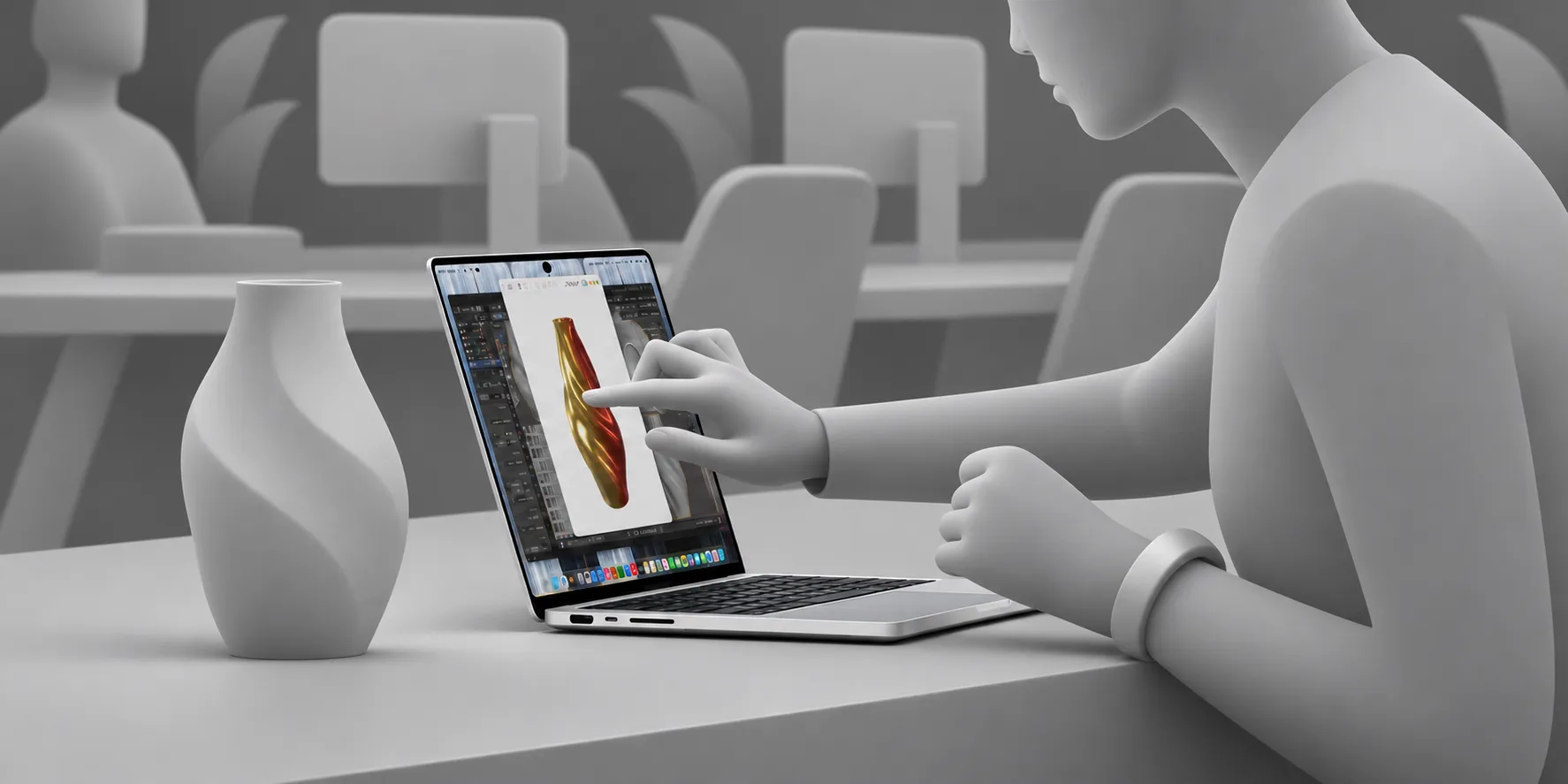
In dire need of a new laptop, I bought one with a touch screen: the new Apple MacBook Pro ProLED XDR (quite the name). I was immediately surprised at how much more efficient some interactions felt when I could touch the screen directly. Rather than moving the cursor to a button, I could reach out and touch it. The action felt natural.
I wondered whether I was imagining the difference or whether there was more to touch than I had realized before.
Apple announced the new MacBook Pros with touch screens in October 2026, the first-ever non-handheld Apple devices with multi-touch support. Many people questioned the appeal of a laptop with a touch screen when it already comes with a trackpad for driving the on-screen cursor, and when the ergonomics of touching a screen that’s constantly vertical have repeatedly been shown to be terrible. To quote Apple founder Steve Jobs: “After an extended period of time, your arm wants to fall off.”
Yet here we are, 16 years after Jobs stood on a stage arguing against vertical touch screens, with a shiny new laptop featuring just that.
Out of curiosity, I started exploring the question pulling at me: when does reaching for the screen make more sense than reaching for a trackpad?
With the help of ChatGPT and Codex, I designed a native application to compare the use of touch with the laptop’s built-in trackpad. I tested six task variants, including pressing a button in a modal dialog, dragging an object to a drop area, selecting a menu item, and dragging across a range of options. I made 80 attempts at each task in random order in sessions of 20 tasks each, using each input separately. Every task attempt began with my hands resting on the keyboard and, for trackpad trials, the cursor in a defined “home” position at the center of the screen. The timer ran from the moment a task appeared until I completed it correctly, including any missed selections and corrections.
Across the 80 attempts, touch averaged 1.39 seconds per task, compared with 1.74 seconds for the trackpad: a difference of 0.35 seconds. Not a big delta, but something. The difference varied by task, and I ended up making two notable errors with touch and one with the trackpad, specifically when selecting within a defined range of elements. This was a preliminary test, and I was the only participant. It gave me a reason to investigate further, but it wasn’t evidence that everyone would see the same results.
Of course, touch laptops are not new. They’ve been around for nearly two decades. So I dug into the academic and industry research to see whether it could help explain my experience and found similar but more insightful results.
In 2011, researchers from Autodesk and the universities of Alberta and Manitoba compared touch, mouse, and touchpad interactions on a desktop setup; 12 participants moved from a keyboard to select targets on the screen. For targets at least 1 cm wide, touch was reported to be 36% faster than a mouse and 52% faster than a touchpad.
The researchers suggested a useful explanation. With a trackpad, you first move your hand from the keyboard to the trackpad, then move the cursor to the target. With touch, reaching for the screen also brings your finger toward the target at once. Moving your hand away from the keyboard and aiming at what you want can happen in the same movement.
In a 2024 study with 54 participants, researchers found touch to be faster than cursor and trackpad interactions for 41% of tested tasks when working with Microsoft Word on a 10-inch laptop screen.
There are caveats, of course.
First, desk-based work requiring interaction for more than a few seconds (or minutes) at a time cannot capitalize on touch displays. Research has proven that vertical touch screens can lead to poor posture and physical pain (Kargar et al., 2018). Second, while touch can increase the speed of interacting with certain elements, it comes at the cost of accuracy.
In the 2011 study, researchers found that touch produced errors or incorrect selections roughly 60% of the time on 5 mm targets.
As a software product designer and creator, I find this an insightful takeaway for how we should consider hybrid technology. Touch on non-handheld computers seems to be more than just a quirky feature; it can be a selective accelerator for some interactions. Apple’s own marketing explains that touch is a more intuitive and direct way to manipulate data on screen (as opposed to working through a surrogate via a physical controller).
Professional blogger John Gruber put it plainly: “Apple added touchscreen support to MacOS the right way. Touch is decidedly secondary on MacOS. The density of the UI doesn’t change at all when you’re using a mouse pointer, and it only changes slightly to create larger tap targets when you touch the screen.”
Touch will not be a universal replacement for a trackpad in laptops or a mouse for desktops, but it does unlock more efficient workflows for large, well-spaced controls and occasional direct actions where alternatives require moving to a pointing device and navigating a cursor.
This leaves me with a more useful design question: which brief, deliberate actions would benefit from direct touch?
Hero image photo originally by Apple.